
AIOStreams Setup Guide
Configure AIOStreams with the providers Remux needs.
Remux Wiki
Guides and concepts for installing, configuring, and using Remux.
Caddy Setup Guide (Optional)
Set up a reverse proxy and expose Remux over the internet.
Overview
AIOStreams is a Stremio addon that requires proper configuration to function. This guide walks through the essential setup steps.
Step 1: Set Up Your AIOStreams Manifest
Choose one of the following options:
Option A: Use a Public Instance
Use the hosted AIOStreams instance:
https://aiostreams.elfhosted.com/stremio/configure
Option B: Self-Host (Recommended)
Self-hosting gives you full control and access to logs for troubleshooting.
📚 Deployment Guide: https://docs.aiostreams.viren070.me/getting-started/deployment/
Paths
There are two paths forward: You can use AIOStreams with debrid services and torrent based scrapers (addons), or you can use AIOStreams with the built-in usenet engine (NNTP), and configure NewzNab addons for your usenet indexers.
Note: Both paths can be set up and used together.
Step 2a: Configure Your AIOStreams Settings (Debrid path)
Everything in this step is done in the configure section of AIOStreams. Navigate to the AIOStreams settings and configure the three essential components below:
Add a Debrid Provider
This provides access to cached torrents and streams.
- Click the settings cog icon ⚙️
- Enter your Debrid token (Real-Debrid, Alldebrid, Torbox, etc.)
- Save your configuration
Enable a Search Addon
Add a search-capable addon to discover content.
Recommended options
- TMDB (via TMDB addon)
- AIOMetadata
⚠️ Important: Do NOT use the TMDB Collections addon—use the standard TMDB addon instead.
Configuration steps
- Add your chosen search addon
- Enable the search catalogs in the addon settings
- Scroll down and confirm the search function is enabled
Add a Stream Provider Addon
Add an addon that provides the actual streaming links.
Recommended options
- Comet
- Mediafusion
- Torrentio
- Other stream-providing addons
Configuration steps
- Add your chosen provider addon
- Configure any required settings or API keys
- Ensure the addon is enabled
Quick Start: Use a Pre-Built Config
Import the starter configuration to skip manual setup:
https://github.com/lostb1t/Gelato/blob/6c5c749ebae7787fe886f2580b959dea17190ac2/aiostreams-config.jsonAfter importing:
- Navigate to AIOStreams settings
- Go to the Services section
- Enable your Debrid provider with your token
- Verify all addons are active
Step 2b: Configure Your AIOStreams Settings (Usenet path)
Note: This path requires you to self host AIOStreams, or use a paid instance on Elfhosted.
Set up the usenet engine
Log into the dashboard part of AIOStreams using your (AIOStreams auth) username and password. Go to usenet > providers and set up your NNTP providers.
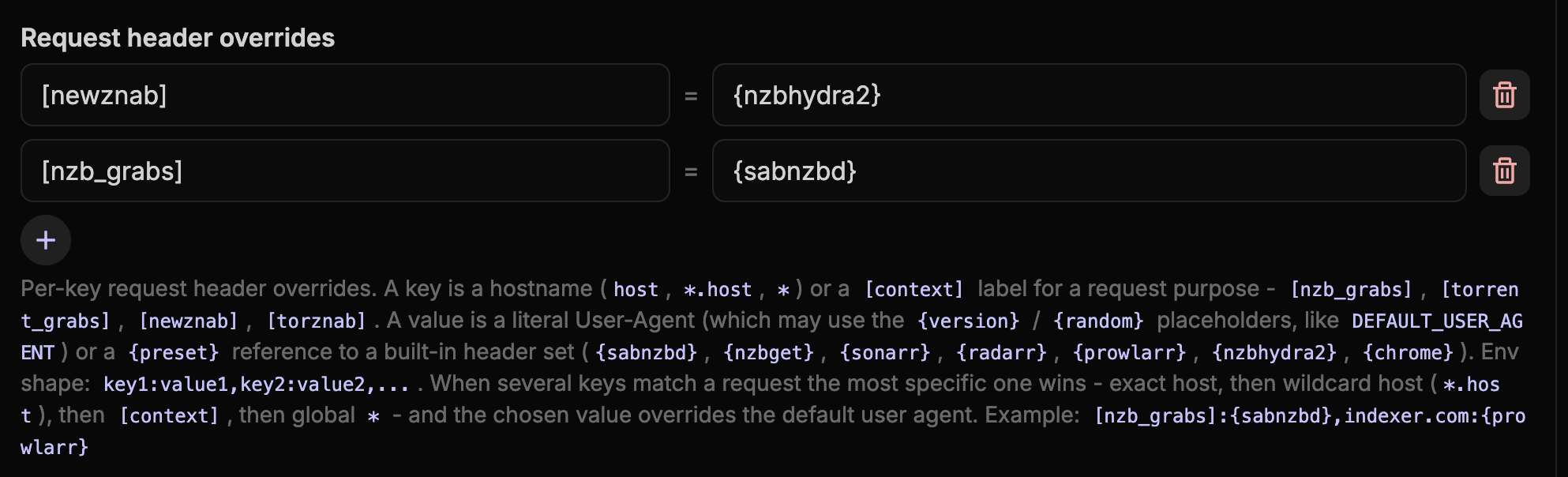
Set up user-agent overrides (for indexers)
Go to dashboard > settings > outbound requests > request header overrides, and set the following overrides:
Enable AIOStreams service
In the configure section of AIOStreams (user config): Go to services, and activate the AIOStreams service. You have to input your AIOStreams auth.
Add a NewzNab addon
Go to the addons section (in your user config), and add the built-in NewzNab addon. Then input your usenet indexer settings. It's recommended to explicitly pick AIOStreams in the service picker.
Need Help?
- 📖 AIOStreams Docs: https://docs.aiostreams.viren070.me/
- 🐛 Report Issues: Check the AIOStreams GitHub repository
- 💬 Community: Stremio Discord and subreddit communities
Remux Wiki
Guides and concepts for installing, configuring, and using Remux.
Caddy Setup Guide (Optional)
Set up a reverse proxy and expose Remux over the internet.
Last updated on by @jonas-thuvesson-winberg